How it works
What actually happens when someone visits your site.
No plugin makes a site fast by magic. Caching Out removes work: the page is built once, kept, and served finished to everyone after – and every optimisation beyond that is a switch that explains itself.
The problem, drawn
Every uncached visit rebuilds the page from nothing.
WordPress boots PHP, queries the database, runs the theme and every active plugin, and only then has HTML to send. A page cache keeps that finished HTML and hands it over before any of that starts.
Illustrative timings for a typical shared host, not a measurement. The sequence is what every uncached WordPress request does; results on your site depend on hosting, theme and plugin mix.
Step 01
Activate.
Install Caching Out and activate it. That is the free edition, and it switches itself on there and then: page caching and the safety rules – logged-in users always get a live page, and cart, checkout and account pages are never cached – are working from the first minute, with no licence and no configuration step before the first cached page. Pro is the part that waits: installed alongside, it scans and audits – Insights, the Page Audit, the Filesystem Check – and shows you what it would change until a licence switches its own features on.
-
What turns on by itself
Page caching, the logged-in bypass, the WooCommerce cart and checkout exclusion, and the purge rules that clear a page the moment you edit it.
Static HTML written to wp-content/cache/, served from advanced-cache.php before plugins load.
-
What waits for you
Everything that can change how a page looks – minification, deferral, cleanup – is a plain-English switch you turn on when you want it, and the defaults are the recommendation.
Each switch is independent; turning one off never touches another.
Step 02
Wizard.
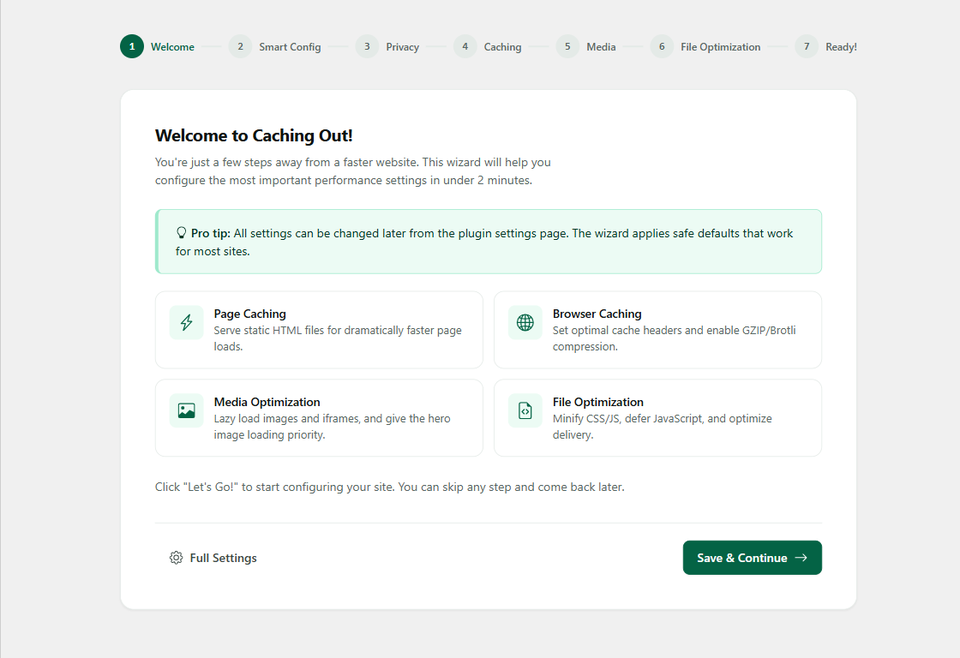
The Setup Wizard walks the settings in order – what is on, what stays off and why – and takes your Pro licence key on its last panel. Your homepage is already being served from cache before you open it, with page caching, browser caching, compression and lazy loading on from activation; the licence is what adds the Pro feature set on top.
-
What switches on
Page caching, browser caching and compression (Expires headers, GZIP, Brotli), image, iframe and video lazy loading, automatic width and height attributes, and hero-image priority – all on, none of it configured by you. Anything that can change how your site looks stays off until you switch it on.
The licence validating is the switch for PRO: until then Pro scans and audits but adds nothing. The free feature set is already writing and serving.
-
Optional, and safe to skip
There is a Setup Wizard if you want one, and caching works perfectly without ever opening it. Nothing to paste into a theme, no config files to write. A Pro licence key can go on the License tab instead.
The key is pasted into the wizard's last panel or the License tab – never into a file.
Step 03 – optional
Tune.
Every optimisation has a plain-language toggle with a description of what it does and when you might want it on or off. Switch on preloading, enable file minification, defer JavaScript, set up CDN URL rewriting – each toggle explains the trade-off so you can make an informed choice. This step is optional: the defaults are the recommendation.
-
Preload
Turn it on and Caching Out crawls your sitemap in the background so the first real visitor lands on an already-cached page. After a purge the crawl runs again, and you can start one yourself from the admin bar, the settings screen or WP-CLI.
Sitemap-driven; batch size and request timeout are configurable, the crawl interval is fixed at 60 seconds.
-
Files
Minify CSS and JavaScript, and defer scripts that are not needed for the first paint. This is the group most likely to change how a page looks, so it is off until you choose it.
Minified copies are written once to the cache directory and reused until the source changes.
-
Media
Serve WebP and AVIF where a converter plugin has produced them – Caching Out delivers them, it does not convert – and replace YouTube embeds with a click-to-load thumbnail. Lazy loading itself is already on.1
Each format has its own cached copy of the page, and a browser only ever receives a copy in a format it announced.
-
If something breaks
Turn that one toggle back off, or exclude the one file. Every optimisation is independent, and a kill switch in wp-config.php disables everything at once, in every version.
define( 'CACHINGOUT_DISABLE_CACHE', true ) – the documented mitigation for a bad release.
Note and caveat (1)
Caching Out serves WebP and AVIF copies of your images to browsers that support them, when those files already exist on your server. It does not convert your images in bulk – use an image conversion plugin for that, and Caching Out will deliver the results; Caching Out Pro can also compress one image at a time and make its copies. Safari supports both formats but does not announce them, so it may receive the original images. Caching Out never sends your images anywhere. ↩
Try the toggles
Every switch explains itself.
A working replica of the settings panel. Flip anything – nothing here touches a real site – and read what it would change and what to check afterwards.
-
Saves the finished HTML the first time a page is built and serves that file to everyone after, before WordPress loads.
-
Crawls your sitemap after a purge so the first visitor to each page gets a warm cache instead of building it.
-
Strips comments and whitespace from your stylesheets and serves the smaller copies from the cache directory.
-
Does the same for scripts. Files that are already minified are left alone.
-
Lets the page paint before scripts that are not needed for the first view run.
-
Fetches images and embeds below the fold only as the visitor scrolls towards them, and restores missing width and height so nothing jumps.
-
Where a converter plugin has produced WebP or AVIF copies, each browser gets the newest format it supports and the rest get the original. Caching Out delivers them; it does not convert.
-
Clears revisions, spam and expired transients on a schedule, and shows you the row counts before anything is deleted.
A replica for reading, not the plugin itself. The real settings page has the same switches with the same explanations beside them.
Then measure
Then measure, and verify.
Open the Caching Out dashboard. You will see your PageSpeed scores, your Core Web Vitals assessment, and a breakdown of what is affecting your load time – render-blocking resources, unoptimised images, missing cache headers, database overhead.
-
Measured, not estimated Pro only
Every number is measured from your actual site through Google PageSpeed Insights, not modelled from a template. You supply a free PageSpeed API key; the plugin does the rest.2
Insights scores are fetched with your own PageSpeed API key and kept alongside the baseline.
-
Before and after, side by side Pro only
Take a baseline, change something, re-test – by hand or on a daily, weekly or monthly schedule – and keep the history. Caching Out shows the delta against the baseline you kept: what changed, and by how much.
A scheduled re-test re-runs the audits and stores the scores. Off by default.
Note and caveat (1)
Performance Insights uses Google's PageSpeed Insights API, which needs a free API key from Google. You paste it in once. Caching Out's separate Page Audit reads your pages directly and needs no key at all. ↩
Many sites
The same setup, across a portfolio.
One licence covers every site you manage, and the settings you tune once travel with you. Export a profile, import it on the next build, and drive purges and preloads from the command line.
-
Settings export and import
A settings profile is a file. Keep your baseline in version control and apply it to a new client site in one command.
Credentials are redacted on export, so a profile is safe to share.
-
WP-CLI for everything you would click
Purge, preload, export and import from a terminal or a deployment script, so a rollout across fifty sites is a loop, not an afternoon.
wp cachingout purge, preload, settings export and settings import.
WP-CLI
-
Clear everything and rebuild the cache from the sitemap -
wp cachingout purge --all -
wp cachingout preload --sitemap -
Success: 1,284 URLs queued. -
Apply one profile across a portfolio -
wp cachingout settings export > baseline.json -
wp cachingout settings import baseline.json
If something looks wrong
Find it, and walk it back yourself.
Every change is on the record, the assistant can point at the one that matters, and one line turns everything off. No support ticket needed.
-
Every change on the record Pro only
Caching Out records every change it makes – a setting you flipped, a rule the Setup Wizard applied, a line written into your server configuration, a cache purge – with who, when, and the value before and after. Most can be undone from the Activity page in one click.
Kept on your own server; passwords and licence keys are never written into it.
-
The assistant points at the cause Pro only
Ask what changed and it already knows your plugins, your settings and the recent changes. If one of them explains the problem, it points to it and offers the revert; nothing is undone until you confirm.3
Answers come from our documentation and link the source they came from.
-
Another cache plugin is never overwritten In the free edition
Caching Out stamps the file it writes and checks the stamp before it ever writes again. If the file belongs to another caching plugin, or to something it does not recognise, it leaves it exactly where it is, tells you which plugin it found, and keeps every other optimisation running.
An ownership stamp on advanced-cache.php, checked before every write; another plugin's block in your server configuration is never touched.
-
One line switches it all off In the free edition
One line in wp-config.php turns all caching off immediately, from any version, with no wp-admin needed.
define( 'CACHINGOUT_DISABLE_CACHE', true ) – documented, permanent, and never removed in a release.
Note and caveat (1)
The assistant answers questions about Caching Out and your site's configuration. It is fair-use limited (currently 50 questions a day and 300 a month per licence) and it is not a general-purpose AI chatbot. Answers are generated by an AI model and can be wrong – check anything consequential against the linked documentation. ↩
Ready when you are
Install it, activate it, and let the first visitor tell you.
The first cached page is served before you have opened a single settings panel. Everything after that is a switch with its reasons written beside it.
- No code required
- Setup in under 3 minutes
- 14-day money-back guarantee
- 14-day money-back guarantee
- Works on standard shared and managed hosting
- Renews yearly, cancel any time