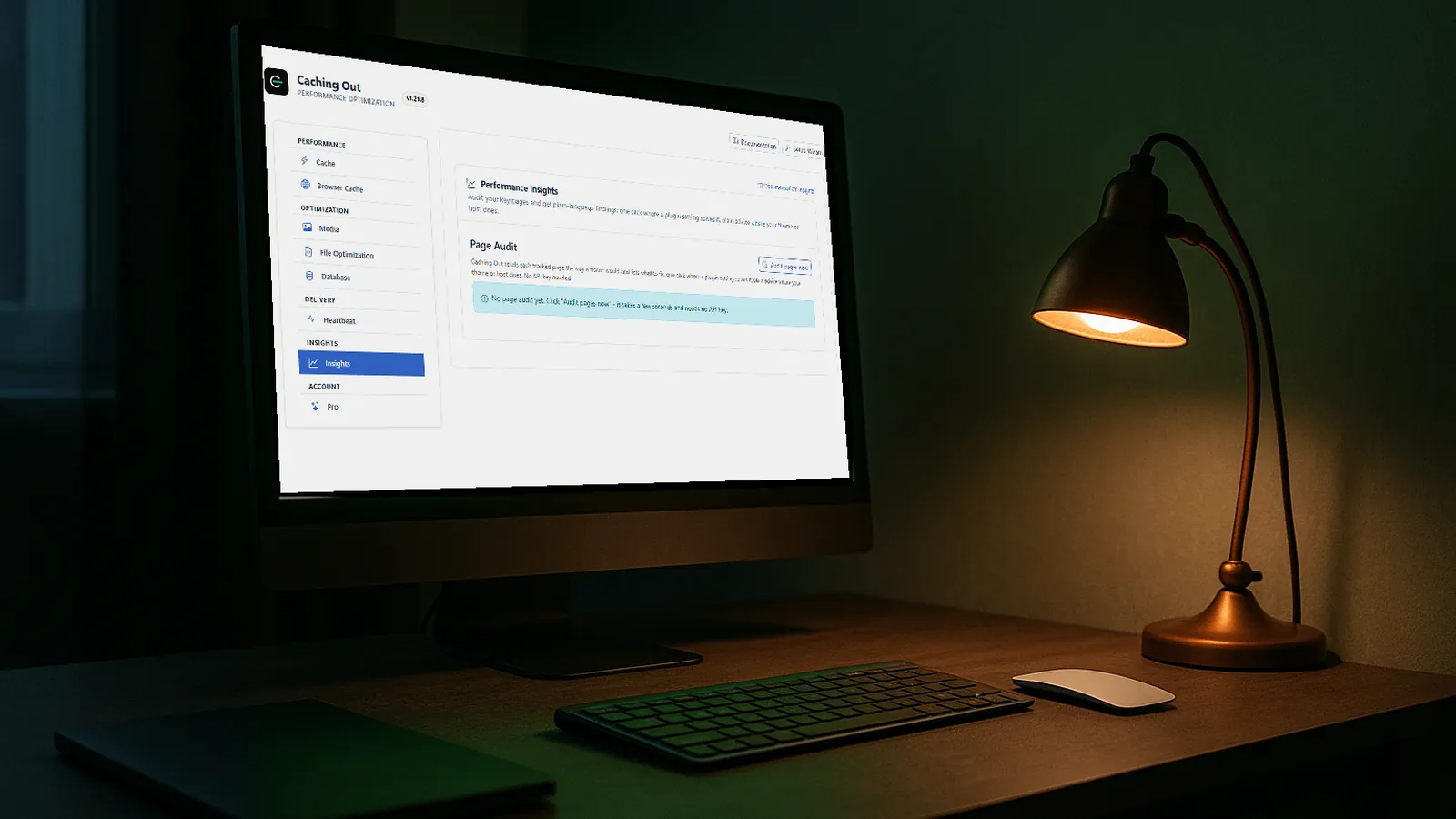
Caching Out does not eliminate render-blocking CSS: its Optimize CSS delivery setting inlines the styles the top of each page needs and loads the rest after the first paint, and any stylesheet that lays out that top section stays render-blocking, which the Page Audit shows you and explains. This article is about the mechanism itself.
When a browser loads a web page, it builds the page in stages. First it downloads the HTML, then it discovers the CSS files linked in the <head>, downloads those, parses them, and only then can it render the page. Those CSS files are “render-blocking” — the browser cannot paint a single pixel until they are downloaded and processed.
Why Render-Blocking CSS Matters
On a typical WordPress site, the <head> section includes links to multiple stylesheets: the theme’s main stylesheet, block library styles, plugin stylesheets, and Google Fonts. Each one is a separate HTTP request, and the browser must wait for all of them before rendering. On a slow connection, this can add seconds to the time before the visitor sees anything on screen.
This directly impacts your Largest Contentful Paint (LCP) score — one of Google’s Core Web Vitals. Every millisecond spent waiting for CSS is a millisecond added to your LCP.
The Critical CSS Approach
The most effective solution is critical CSS generation. The idea is simple: extract only the CSS rules needed to style the content that is visible above the fold (the “critical” CSS), inline those rules directly in the <head>, and defer the full stylesheets to load asynchronously. The browser can render the visible portion of the page immediately, while the rest of the CSS loads in the background.
Critical CSS tooling analyzes a page, identifies which CSS rules apply to above-the-fold content, and inlines them, while the full stylesheets are loaded with media="print" onload="this.media='all'" — a well-established pattern that makes them non-render-blocking. It is also the easiest optimization to get wrong, which is why we recommend testing any critical CSS setup carefully on the templates that matter.
Other Techniques
- Minify and combine CSS files. Fewer files mean fewer HTTP requests. Combining multiple stylesheets into one reduces the number of round-trips the browser must make.
- Load only the CSS a page needs. Most WordPress sites load CSS for features they do not use — block styles for blocks not on the page, plugin stylesheets for functionality not active on that page. Trimming that reduces the total bytes the browser must download and parse.
- Self-host Google Fonts. Loading fonts from Google’s CDN adds an extra DNS lookup and connection to an external server. Self-hosting the font files eliminates that overhead.
Further reading: Deferring JavaScript for Faster Page Loads — the JavaScript counterpart to CSS optimization.